Recording sales and expenses
Log an expense where it happens, record a sale against your flocks, and correct a mistake without losing the history.
Last updated 2026-09-13
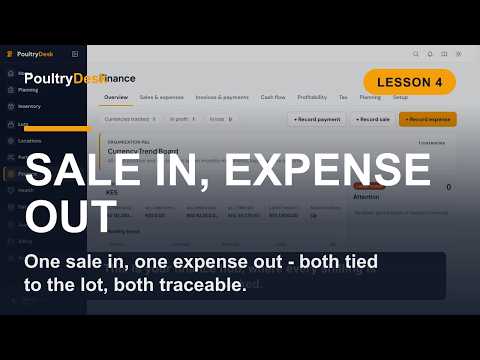 Watch: Lesson 4Record a sale and an expense1:18 on YouTube
Recording sales and expenses
The whole point of running a flock is to make money, and the Money section exists to answer one question for every flock: did it make money, and how do we know? That starts with recording what you spend and what you sell.
Log an expense in the field
Record expenses where they happen. When the feed truck delivers and hands over a receipt, you do not need to go back to the office.
- Open the house view and tap Log expense (or start from the Money section).
- The form pre-fills the date, the site, and the most recent category you used - usually feed.
- Choose the supplier from the picker. It offers + Walk-In Supplier for an unnamed supplier and + New Supplier to create a reusable supplier record, both at the top of the list.
- Enter the amount and attach a photo of the receipt when you have one.
- For Feed, confirm the cost path. Stocked Feed - cost when consumed receives the quantity into Inventory and charges Lots later through weighted-average cost when they consume it. Direct Feed cost - allocate now is for a validated non-stocked delivery; select the Lots and explain why it bypasses stock.
- For other period costs, choose the allocation method and optionally narrow the Lot list by Site before selecting the Lots.
- Submit. The expense saves even without a signal and syncs when you are back online (see Recording data without a signal).
Workers can be allowed to log expenses so that anyone holding a receipt can record it. Whether that is turned on is up to each organization.
Identify direct Feed purchases
For a direct Feed expense, Feed product links the purchase to an active Feed catalog item with stock tracking off. Choose Feed stage from the invoice: Starter, Grower, Layer, Finisher, or Unknown. Selecting a product does not receive stock or create a second cost. If the invoice does not identify the product, leave Unknown / not specified selected. Changing the product resets its stage to Unknown so the previous choice does not carry across accidentally.
Feed phase guidance compares the selected product stage with each selected Lot's estimated phase at the expense date, or the Feed allocation window for Proportional - feed. It warns about a mismatch or a window crossing phases. Check the invoice and targets before saving; warnings do not change the split or block saving, and are not feeding recommendations. The product and stage stay in the offline draft and queued expense.
The same identity fields are available when correcting a Feed expense. Existing untyped purchases remain unknown until explicitly corrected; PoultryDesk does not infer product identity from supplier names or amounts. For a legacy Operations expense, first confirm its classification and correct it to Feed if you need to add a product identity.
Record a sale
Sales are usually recorded by a manager or owner at the end of the day.

- Open the Sales screen and choose New sale.
- Pick the customer from the picker. It offers + Named walk-in for a quick one-off sale and + New customer to create a reusable customer record at the top of the list; the standing Walk-in customer stays available as a normal choice.
- Choose the Stock origin once for the whole sale: Farm Lot for flock-sourced products, or Purchased inventory to draw from stock. Then add each product row (product and package). Birds keep their source flock. For eggs, the Product picker carries the size grade - pick Eggs - Large, Eggs - Medium, and so on (or plain Eggs for an ungraded sale) so the price matches the grade. When you draw graded eggs from Purchased inventory, select the graded egg row from the Site pool and PoultryDesk reads the grade from that stock row instead, because pooled eggs are mixed at grading and no longer have an honest single-flock origin.
- Enter the quantity and unit price. The price defaults to the last price you charged this customer for that product.
- For Lot-backed products, use Lot allocation to choose the source Lots. An all-pooled graded-egg sale has no physical Lot allocation.
- If you charged for delivery, open + Add delivery fee and type the flat amount. Turn on Charge tax on delivery if the delivery is taxable, and add a note if you want. The delivery amount is added to the sale total and settles with the sale, but it is kept separate from product revenue so per-flock margins stay accurate.
- Set the payment terms, and optionally record a payment straight away for a cash sale.
- Submit. PoultryDesk records the sale and updates the customer's running balance.
Selling graded eggs draws down the selected grade at that site and records its weighted-average inventory cost. PoultryDesk blocks a quantity larger than the stock on hand.
A delivery fee appears as its own Delivery line on the invoice and receipt, and is reported as delivery income separately from product sales, so it never distorts a flock's margin or feed-conversion figures.
Recording a sale from a flock that is under an active medication withdrawal is blocked, and the reason is shown. An override exists for genuine emergencies; it requires a written reason and is kept in the audit trail.
Set a customer-specific price
Record a negotiated customer price as an agreement on the matching price-book entry:
- Create the customer under Partners > Customers.
- Go to Finance > Setup > Price books.
- Open the relevant product, package, and grade price book, or create it first if it does not exist.
- Select + Add agreement.
- Enter the customer, custom price, currency, Valid from, and optional Valid until.
- Select Add agreement.
Each agreement covers one customer and one price-book item. A contract covering several products therefore needs one agreement for each product, package, and grade combination.
When you record a sale or invoice, PoultryDesk applies the active customer agreement before the base price. A recorded sale retains the agreement ID and price source for auditability. Invoice entry uses the same agreement-first price lookup, but the current invoice event retains the resolved amount rather than the agreement ID and price source.
Agreements are not edited in place. Revoke the old agreement, optionally record a reason, and create its replacement. Both actions remain in the append-only event history.
The agreement form does not capture contract numbers, documents, volume tiers, or agreement notes. Those fields require a product enhancement. Customer price agreements do not change financial allocation methods or rounding rules.
Correcting a mistake
If a sale or expense was keyed wrong - 30 trays instead of 300 - you correct it rather than delete it.
- Open the sale or expense and choose Correct.
- The form opens with the current values. Fix them and enter a reason of at least 10 characters.
- For a Feed Expense, confirm the cost path. Changing direct cost to stocked Feed requires the Feed item, storage location, and received quantity. Changing stocked Feed to direct cost requires the target Lot and a direct-cost reason.
- Review and submit.
The original stays in the audit trail, and the corrected version is what your reports show. A Feed cost-path change updates the allocation and receipt together. If any required leg fails, none of the correction is posted. Prior allocation and receipt facts remain available in history.
A correction keeps the existing Feed identity unless it is explicitly changed or cleared. Switching to a stocked purchase or a non-Feed category clears the direct Feed identity. An unavailable, archived or stock-tracked product cannot be submitted as a direct Feed product.
When a direct cost is split By feed used, the allocation snapshots the effective Feed kg for its date window. Later Feed backfill does not alter that historical allocation. A zero-Feed window is rejected with No Feed basis, so the expense remains visibly unallocated until you choose a supported basis or record the missing Feed decisions.